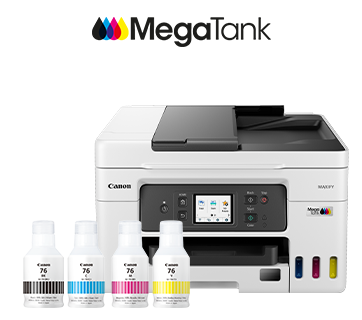
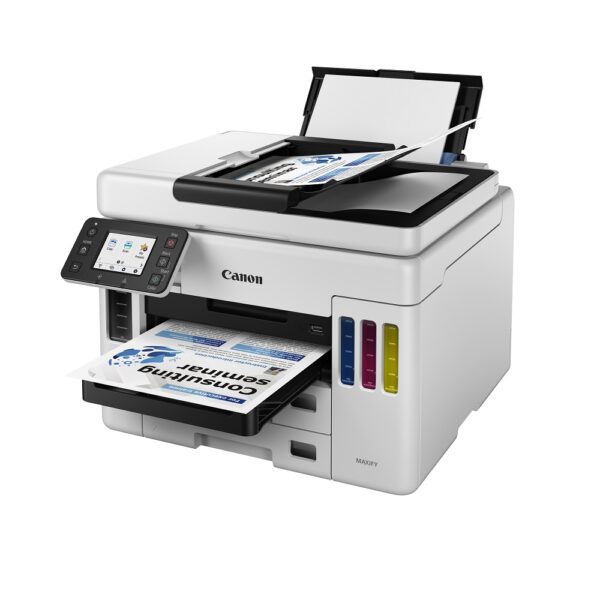
Canon MAXIFY GX7070 Mega Tank Inkjet Printer
$ 94.70
Description Print Print Head / Ink Number of Nozzles Total 4,352 nozzles Ink Bottles (Type/Colours) GI-76 (All Pigment Inks / Black, Cyan, Magenta, Yellow) Maintenance Cartridge MC-G01 Maximum Printing Resolution 600 (horizontal)*1 x 1,200 (vertical) dpi Print Speed*2 (Approx.) Click here for summary report Click here for Document Print and Copy Speed Measurement Conditions Document (ESAT/Simplex) 24 / 15.5 ipm (mono/colour) Document (ESAT/Duplex) 13 / 10 ipm (mono/colour) Document (FPOT Ready/Simplex) 7 / 8 sec (mono/colour) Printable Width Up to 208.0 mm Printable Area Bordered Printing Envelope (COM10, DL, C5, Monarch): Top/Bottom margin: 12.7 mm, Left/Right margin: 5.6 mmB-Oficio, M-Oficio, Foolscap, FS, LTR, LGL: Top margin: 3 mm, Bottom margin: 5 mm, Left/Right margin: 4 mm Square 5 x 5″ (127 x 127 mm): Top/Bottom/Left/Right margin: 6 mm Custom Size: Top margin: 3 mm, Bottom margin: 5 mm, Left/Right margin: 3.4 mm Others: Top margin: 3 mm, Bottom margin: 5 mm, Left/Right margin: 3.4 mm Bordered Auto 2-Sided Printing LTR: Top/Bottom: 5 mm, Left/Right: 4 mmOthers: Top/Bottom: 5 mm, Left/Right: 3.4 mm Support Media Rear Tray Plain Paper (64 – 105 g/m²) Photo Paper Pro Luster (LU-101) Photo Paper Plus Glossy II (PP-201) Matte Photo Paper (MP-101) Double-Sided Matte Paper (MP-101D) High Resolution Paper (HR-101N) Photo Paper Plus Semi-Gloss (SG-201) Envelope Cassette 1 / 2 Plain Paper (64 – 105 g/m²) Paper Size Rear Tray A4, A5, A6, B5, LTR, LGL, B-Oficio, M-Oficio, Foolscap, FS, Executive, Envelope [#10, DL, C5, Monarch], 4 x 6″, 5 x 7″, 7 x 10″, 8 x 10″, Square (5 x 5″)[Custom Size] Width: 89 – 216 mm, length: 127 – 1200 mm Cassette 1 A4, LTR, A5, B5, Executive [Custom Size] Width: 148 – 216 mm, length: 210 – 297 mm Cassette 2 A4, LTR [Custom Size] Width: 210 – 216 mm, length: 279.4 – 297 mm Paper Handling (Maximum Number) Rear Tray Plain Paper (A4/Letter, 64 g/m²): 100 Photo Paper Plus Glossy (PP-201, 4 x 6″): 20 Photo Paper Plus Semi-Gloss (SG-201, 4 x 6″): 20 Matte Photo Paper (MP-101, 4 x 6″): 20 Cassette 1 / 2 Plain Paper (A4/Letter, 64 g/m²): 250 Support Media for Auto 2-Sided Printing Type Plain Paper Size A4, LTR Paper Weight Rear Tray Plain Paper: 64 – 105 g/m² Canon Paper: Max. paper weight, approx. 275 g/m² (Photo Paper Plus Glossy II, PP-201) Cassette 1 / 2 Plain Paper: 64 – 105 g/m² Ink End Sensor Electrode type and dot count type combined Print Head Alignment Auto / Manual Scan*3 Scanner Type Flatbed (ADF / Platen) Scanner Method CIS (Contact Image Sensor) Optical Resolution*4 1,200 x 1,200 dpi Scanning Bit Depth (Input/Output) Greyscale 16 / 8 bit Colour RGB each 16 bit / 8 bit Line Scanning Speed*5 (Approx.) Greyscale 1.4 ms/line (300 dpi) Colour 1.4 ms/line (300 dpi) Maximum Document Size Flatbed A4 / LTR (216 x 297 mm) ADF A4 / LTR / LGL Copy Compatible Media Size A4, A5, A6, B5, LTR, LGL, Executive, FS, Foolscap, B-Oficio, M-Oficio, 4 x 6″, 5 x 7″, Square (5 x 5″) Type Plain Paper Photo Paper Plus Glossy II (PP-201, PP-208) Photo Paper Pro Luster (LU-101) Photo Paper Plus Semi-Gloss (SG-201) Matte Photo Paper (MP-101) Image Quality 3 positions (Economy, Standard, High) Density Adjustment 9 positions, Auto Intensity (AE copy) Copy Speed*6 (Approx.) Click here for summary report Click here for Document Print and Copy Speed Measurement Conditions Document (Colour): (sFCOT/Simplex) / (sESAT/Simplex) 12 sec / 12.7 ipm Document (ADF): Colour / Mono 12.2 / 22.2 ipm Multiple Copy Black / Colour Max. 99 pages Fax Type Desktop Transceiver (Super G3 / Colour Communication) Applicable Line PSTN Transmission Speed*7 Mono / Colour (Approx.) 3 sec / 1 min Fax Resolution Mono (Approx.) 8 pels/mm x 3.85 lines/mm (Standard) 8 pels/mm x 7.7 lines/mm (Fine) 300 x 300 dpi (Extra Fine) Colour (Approx.) 200 × 200 dpi Print Size A4 / LTR / LGL Scanning Width A4 / LTR Modem Speed Max. 33.6 kbps (Automatic fall back) Compression Mono MH / MR / MMR Colour JPEG Gradation Mono 256 levels Colour 24 bit full colour (RGB each 8 bit) ECM (Error Correction Mode) Available Automatic Dialling Coded Speed Dialling Max. 100 locations Group Dialling Max. 99 locations Transmission / Reception Memory*8 Approx. 250 pages PC Fax Type Windows: Available, macOS: Available Destination Number 1 Location Mono / Colour B/W Transmission only Network Protocol SNMP, HTTP, TCP/IP (IPv4/IPv6) Wired LAN Network Type IEEE 802.3u (100BASE-TX) / IEEE 802.3 (10BASE-T) Data Rate 100 Mbps / 10 Mbps (auto switchable) Wireless LAN Network Type IEEE 802.11b/g/n 2.4 GHz, Supported Channels: 1 – 13 (TW/HK: Supported Channels: 1 – 11 only) Security WEP64/128 bit WPA-PSK (TKIP/AES) WPA2-PSK (TKIP/AES) Direct Connection (Wireless LAN) Available Printing Solutions AirPrint® Available Mopria® Print Service Available Canon Print Service (for Android) Available Cloud Integration Service From smartphone/tablet Available From printer Available Canon PRINT (for iOS/Android) Available System Requirements*9 Windows 10 / 8.1 / 7 SP1 (operation can only be guaranteed on a PC with a pre-installed Windows 7 or later)macOS v10.12.6 ~ 10.15 ChromeOS General Specifications Operation Panel Display 2.7″ / 6.7 cm LCD (Touch-Screen) Language 33 Selectable Languages: Japanese / English / German / French / Italian / Spanish / Dutch / Portuguese / Norwegian / Swedish / Danish / Finnish / Russian / Czech / Slovenian / Hungarian / Polish / Turkish / Greek / Simplified Chinese / Traditional Chinese / Korean / Indonesian / Slovakian / Estonian / Latvian / Lithuanian / Ukrainian / Romanian / Bulgarian / Thai / Croatian / Vietnamese ADF Paper Handling (Plain Paper) A4, LTR: 50, LGL: 10, others: 1 Interface USB 2.0, USB flash memory Operating Environment*10 Temperature 5 – 35°C Humidity 10 – 90% RH (no dew condensation) Recommended Environment*11 Temperature 15 – 30°C Humidity 10 – 80% RH (no dew condensation) Storage Environment Temperature 0 – 40°C Humidity 5 – 95% RH (no dew condensation) Quiet Mode Available Acoustic Noise (PC Print) (Approx.) Plain Paper (A4, B/W)*12 49.0 dB(A) Power AC 100-240 V, 50/60 Hz Power Consumption (Approx.) OFF 0.2 W Standby (scanning lamp is off) USB connection to PC 0.9 W Copying*13 USB connection to PC 23 W Duty Cycle Up to 45,000 pages/month Dimensions (WxDxH) (Approx.) Factory Configuration 399 x 410 x 314 mm Output/ADF Trays Extended 399 x 645 x 387 mm Weight (Approx.) 13 kg Page Yield*14 Plain Paper Click here for more information A4 Colour Documents*15: GI-76 PGBK: 6,000 (Economy Mode*16 9,000) GI-76 C, M, Y: 14,000 (Economy Mode*16 21,000) Ink droplets can be placed with a pitch of 1/4800 inch at minimum. Document print speeds are the average of ESAT (Word, Excel, PDF) in Office Category Test for the default simplex mode, ISO/IEC 24734. Photo print speed is based on the default setting using ISO/JIS-SCID N2 on Photo Paper Plus Glossy II and does not take into account data processing time on host computer. Print speed may vary depending on system configuration, interface, software, document complexity, print mode, page coverage, type of paper used etc. TWAIN driver (ScanGear) is based on the TWAIN specification V1.9 and requires the Data Source Manager comes with the operating system. Optical resolution scan is available, only when you use TWAIN Driver. Optical resolution is a measure of maximum hardware sampling resolution, based on ISO 14473 standard. The fastest speed in Hi-Speed USB on Windows PC. Transfer time to computer is not included. Copy speeds are the average of sFCOT and sESAT, ISO/IEC 29183. Copy speeds (ADF) are ESAT of copy in sequence, ISO/IEC 24735. Copy speed may vary depending on document complexity, copy mode, page coverage, type of paper used etc. and does not take into account warm-up time. Black & white document fax transmission speed is based on default setting using ITU-T No.1 chart. Colour document fax transmission speed is based on default setting using Canon Colour Fax Test Sheet. Actual transmission speed may vary depending on document complexity, fax settings at receiving end, and line conditions etc. Page count is based on ITU-T No.1 chart or Canon FAX Standard Chart No.1. Please visit https://asia.canon/support to check OS compatibility and to download the latest driver updates. The performance of the printer may be reduced under certain temperature and humidity conditions. For the temperature and humidity conditions of papers such as photo paper, refer to the paper’s packaging or the supplied instructions. Acoustic Noise is measured based on ISO7779 standard with default setting. When copying ISO/JIS-SCID N2 (printed by inkjet printer) on A4 size plain paper using default settings. Page yields may vary depending on content coverage, print settings, temperature, humidity, and frequency of printing. Declared yield value is the estimated value based on Canon individual test method using the ISO/IEC 24712 colour chart and continuous printing simulation with the replacement ink bottles after initial setup. The colour yield is based on 1 set of composite colour bottles. The Economy mode reduces the ink consumption by lowering the density. More pages can be printed using this mode. Disclaimer To maintain optimal printer performance, Canon printer automatically perform cleaning based on its condition. During this cleaning process, a small amount of ink is consumed, which may include all colours of ink. [Cleaning Function] The cleaning function helps remove air bubbles or clogs from the print head nozzles, preventing degradation in print quality or nozzle blockages. Replacement parts for printers will be available for five years after production is discontinued. Depending on your model, we may recommend replacing it with a new unit or one that offers similar performance as part of our maintenance service. In such cases, you may find that supplies or accessories for your model are no longer available, or that compatible operating systems may change. To achieve optimal print quality, use the ink within six months of opening. Depending on your device, whether it is a computer or a smartphone and its operating system, the estimated ink level information displayed on your screen may differ from what appears on the printer’s operation panel. Additionally, some parts of the estimated ink level message shown on the printer may not be visible or may appear at different times. Canon recommends using the information displayed on the printer’s operation panel as your primary reference, noting that this information serves only as a guideline. Even when black-only or greyscale printing is selected, colour inks may still be consumed depending on the printing material and driver settings. When the ink level in any tank falls below the lower limit line, Canon recommends refilling that tank with the corresponding colour ink. During the initial printer setup, a portion of ink is used to fill the print head’s nozzles. As a result, the page yield of the initial bundled set of ink bottles will be lower than that of the subsequent set. The estimated page yield and/or print cost stated in brochures, catalogues, websites, and similar materials are based not on the initial set of bundled ink bottles, but on subsequent sets after the print head nozzles have been filled with ink from the initial set of ink bottles. For warranty details, please contact a Canon authorised sales representative in your country or region. The warranty covers only the main printer body and excludes consumables such as print media and ink/ink bottles even during the warranty period. Ink bottles sold are generally meant for use with printers sold in the same region. The ink bottles may bear unique labels or configurations and may not be compatible for use with printers sold in another region. To ensure optimal performance of your printer, please check with your local Canon office or authorised Canon reseller before relocating your printer from the location of purchase. Please note that if the printer malfunctions or breakdown due to the usage of non-genuine ink bottles, repair charges will apply, even if the claim is made within the warranty period. Please be aware that if a problem arises from using non-genuine ink bottles (including those refilled with non-genuine ink through methods such as making a hole in the bottle), a fee will be charged for repairs, even during the warranty period. Keep this in mind when using non-genuine ink. Depending on your device, such as a computer or smartphone and its operating system, the estimated remaining capacity information for the maintenance cartridge displayed on your screen may differ from what is shown on the printer’s operation panel. Additionally, the message regarding the estimated remaining capacity of the maintenance cartridge may appear at different times. Canon recommends using the information displayed on the printer’s operation panel as your primary reference. While using the printer, the maintenance cartridge may be filled with ejected ink. When the maintenance cartridge is full, printing will stop to prevent ink leakage. You will need to replace it with a new cartridge. It is advisable to purchase a new maintenance cartridge in advance and replace the filled one yourself, following the provided instructions. Information on Received Faxes By default, received faxes are printed immediately upon receipt. Additionally, faxes are automatically stored in the printer’s memory. However, there is a limit to the number of faxes or subjects that the printer can store. When the memory reaches its capacity, the most recently stored faxes will overwrite the earliest ones. As long as paper is loaded, the printer will continue to print even if ink levels are low. However, if ink is insufficient, printed faxes may appear unclear due to ink blurring. If the memory is full, older faxes will be deleted first, which may prevent you from accessing them either in printed form or from the printer’s memory. Therefore, if you plan to use the fax feature, ensure that there is sufficient ink in the tank beforehand. We also recommend refilling the ink tank early to avoid running out of ink during fax printing. Visually check the remaining ink levels in the tank and review printed pages immediately after receiving faxes. If any faxes remain in memory, you can reprint them after refilling the ink tank. If you select [Do not print] for [Received documents] under [Auto print settings] in the FAX settings on the printer’s operation panel, received faxes will not be printed immediately. Instead, they will be stored in memory, allowing you to select and print them later. With this setting, if the printer’s memory reaches its limit, it will not receive any new faxes and stored faxes will not be overwritten automatically. A printer with a fax function stores the following fax data in its memory: • Faxes that were not printed due to conditions such as running out of ink. • Faxes in the send queue. If you disconnect the power cord, the date and time settings will reset, and any faxes stored in the printer’s memory will be deleted. Before disconnecting the power cord, please ensure that any faxes you wish to keep have already been printed or sent. Please refer to individual country / region websites and respective sales offices for product availability. Specifications, availability and terms of offers may change without notice. Products / Services may be manufactured by and/or supplied to us by third party manufacturers / suppliers for distribution / resale (non-Canon brand products).